Blog · PushArrange release · · 3 min read
Announcing PushArrange for Mac
Push the pointer toward your monitor and your Mac rearranges the screens to match. A free menu bar app for a MacBook and one external monitor, with no setup and nothing to configure.
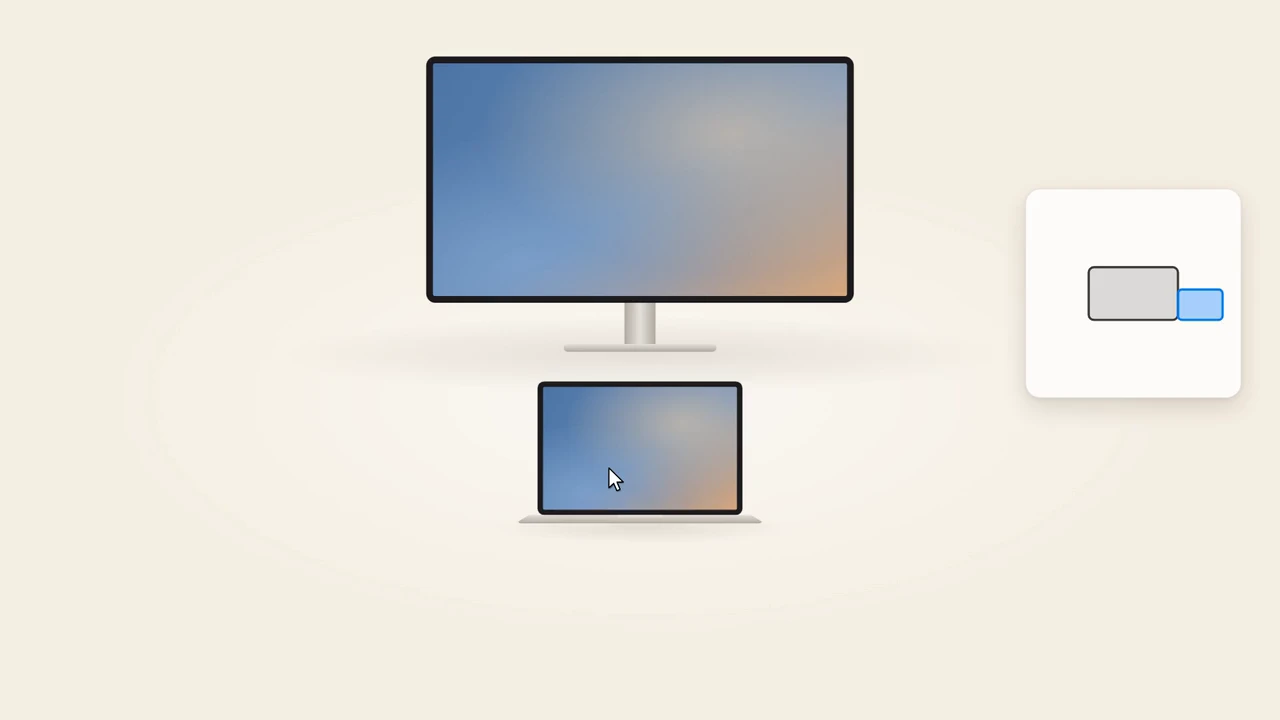
Today we are releasing PushArrange for Mac, a small menu bar app with one job. When you move your MacBook to the other side of your monitor, you no longer open System Settings and drag rectangles around. You push the pointer toward the monitor, the way you already reach for it, and the screens rearrange to match. The pointer is carried across in the same motion.
- No setup. Install it and it is on. There is nothing to calibrate and no layout to save ahead of time.
- Any side. Left, right, above or below. Push off the MacBook or off the monitor; both work.
- Out of the way. 0.02% CPU at rest with a monitor attached, measured over a minute on an M4 Pro. ⌃⌥⌘P turns it off and on.
- Private. No account and no analytics in the app. The only network request is a check for a newer version, about once a day.
- Free. Notarized by Apple, under 1 MB, for Apple silicon Macs on macOS 14 or later.
The problem
A MacBook moves. It sits under the monitor in the morning, beside it after lunch, on the other side after a desk swap. macOS keeps the arrangement you set last time, and macOS 27 now promises your arrangements "stay exactly as you left them" [1]. That is the right default for a desk that never changes, and the wrong one for a laptop that does: the pointer runs into a wall on the edge where the monitor really is.
People have run into this before. A Hacker News commenter who moves between hot desks describes keeping two layout shortcuts to flip between [2], and a display utility's own docs describe opening System Settings to rearrange the screens when a MacBook moves between office and home [3].
How it works
When the pointer is pinned against an edge that has no screen beyond it and you keep pushing, you are reaching for a monitor that is not arranged there. Trackpads and mice keep reporting motion while the pointer is pinned, so PushArrange adds that push up. Past about 260 points on a side edge, or 420 at the top or bottom so a flick to the menu bar or the Dock never counts, it moves the other screen to that edge, lined up with the pointer, and carries the pointer across. If the monitor is already on that side, the layout stays put and only the pointer is carried across.
Built to stay out of Universal Control's way
If your Mac shares its pointer with another Mac through Universal Control, a push at an edge might be a reach for that Mac instead. PushArrange follows Universal Control's own state and does nothing at all while a link is being set up or is connected, and leaves alone any edge Universal Control has armed. Until it knows, it waits.
What it does not do
- It handles a MacBook's built-in screen plus exactly one external monitor, extended. Two or more monitors are not supported.
- Intel Macs are not supported.
- It is not on the Mac App Store: the store's sandbox does not let an app read Universal Control's state, and we will not ship without that safety check.
Get it
Download it from dotcomjack.com/pusharrange, or install it with Homebrew: brew install --cask dotcomjack/tap/pusharrange. Open it, let it move itself to Applications, and push toward your monitor. PushArrange is patent pending. Tell us how it works on your desk: jack@dotcomjack.com.